IMPORTANT: The TTHQ-Remote.com learning system allows you to make notes. But the notes feature can not be relied upon as a permanent store. You are responsible for backing up your own notes (via the download function) after you have made them. Technical Topics do not accept responsibility for the storage or presevation of your personal notes.
Taking Notes During Lessons
Start a lesson – Open any course lesson or topic.
Click the Notes icon – Look for the notes button/tab (arrrow 1)
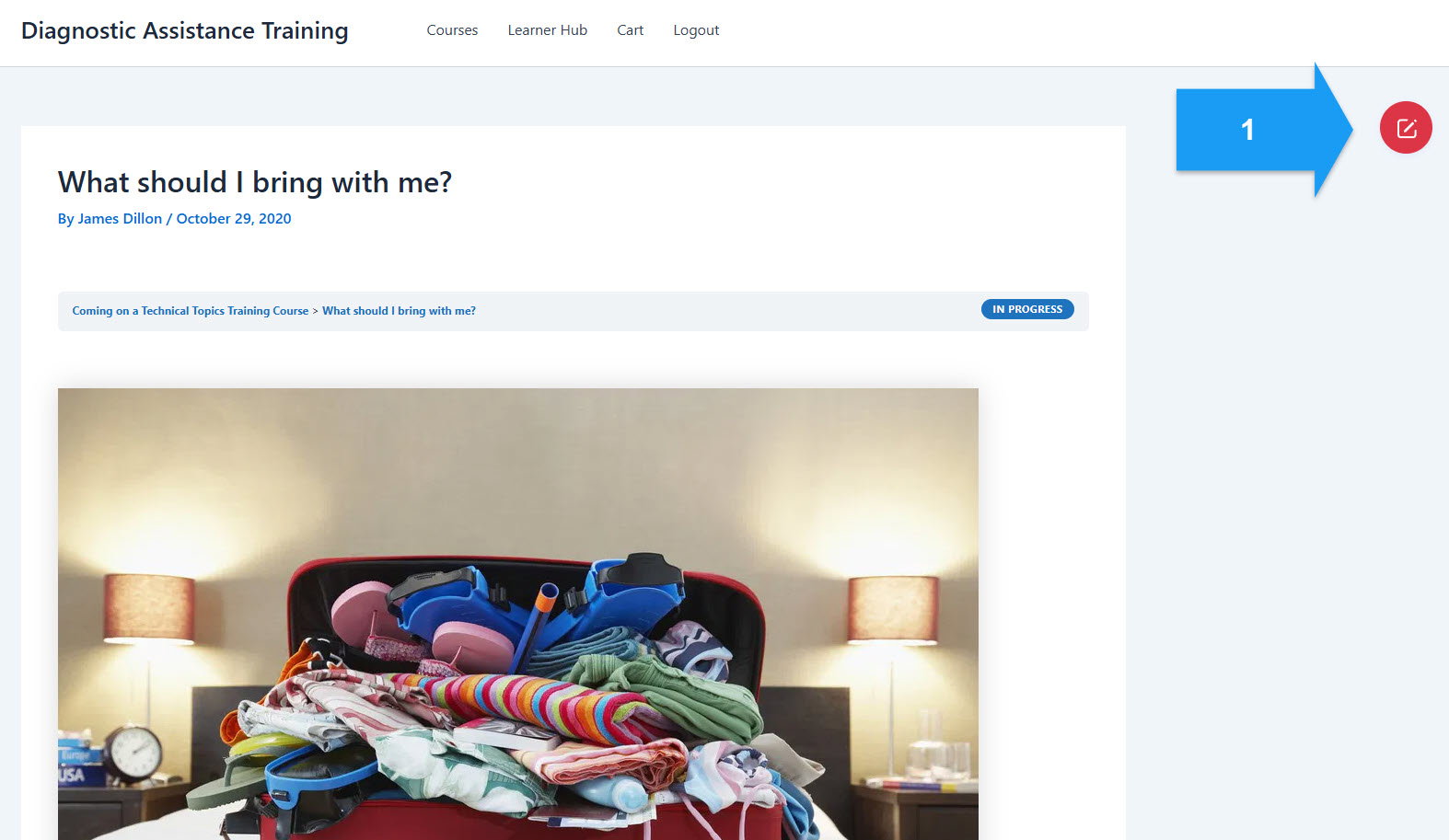
This will open up the notes – You can see the editor and the controls.
Type your notes – Write down key points, questions, or reminders

Edit box resizing – You can grow or shrink the notes to suit the volume of notes you need to take.
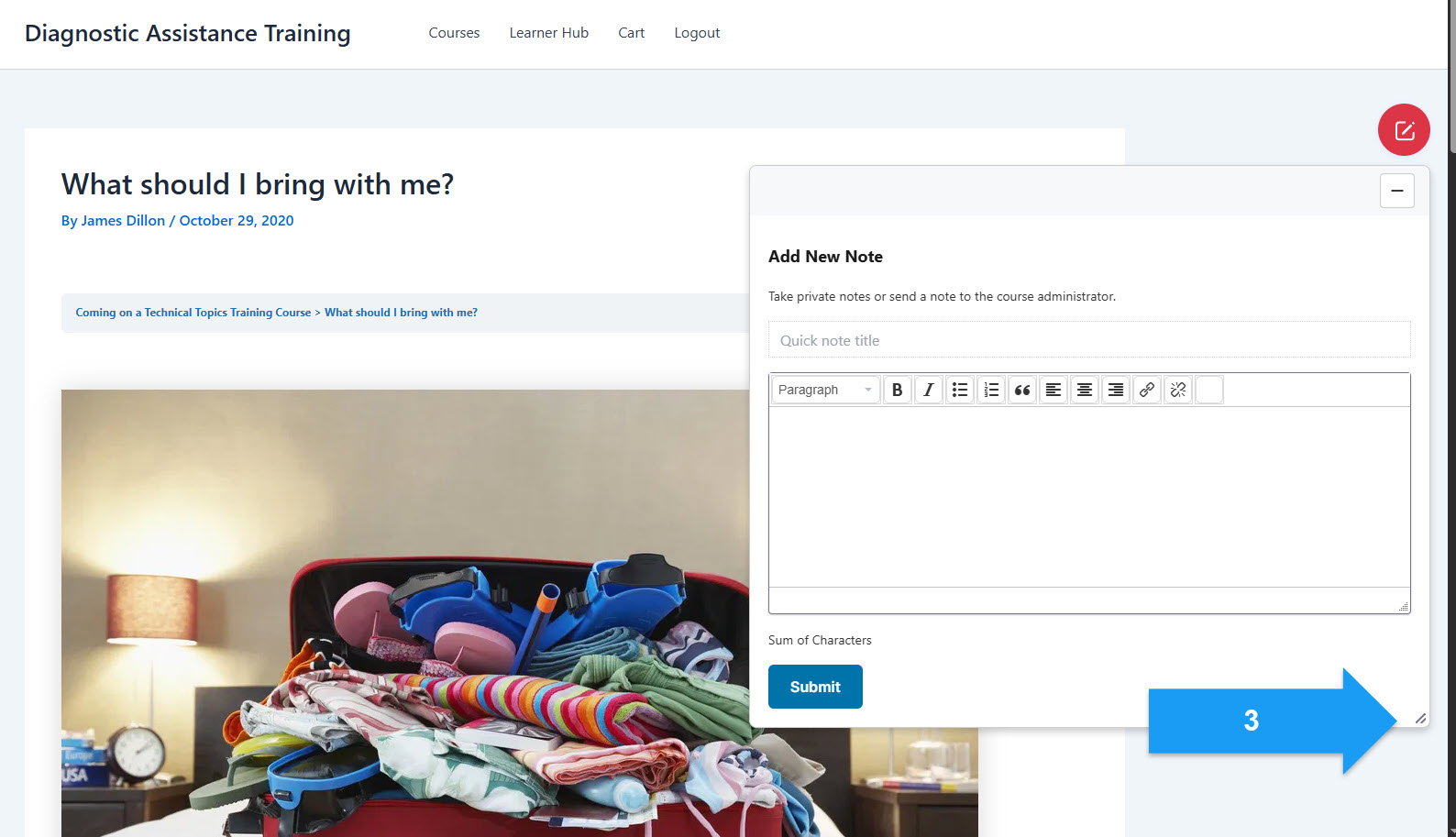
Click Submit – And your notes saved to this lesson or topic.
Editing a note – This is not possible once the note is saved. You have to make a new note (and delete the old one) or make an additional note with additional content.
Finding Your Notes Later
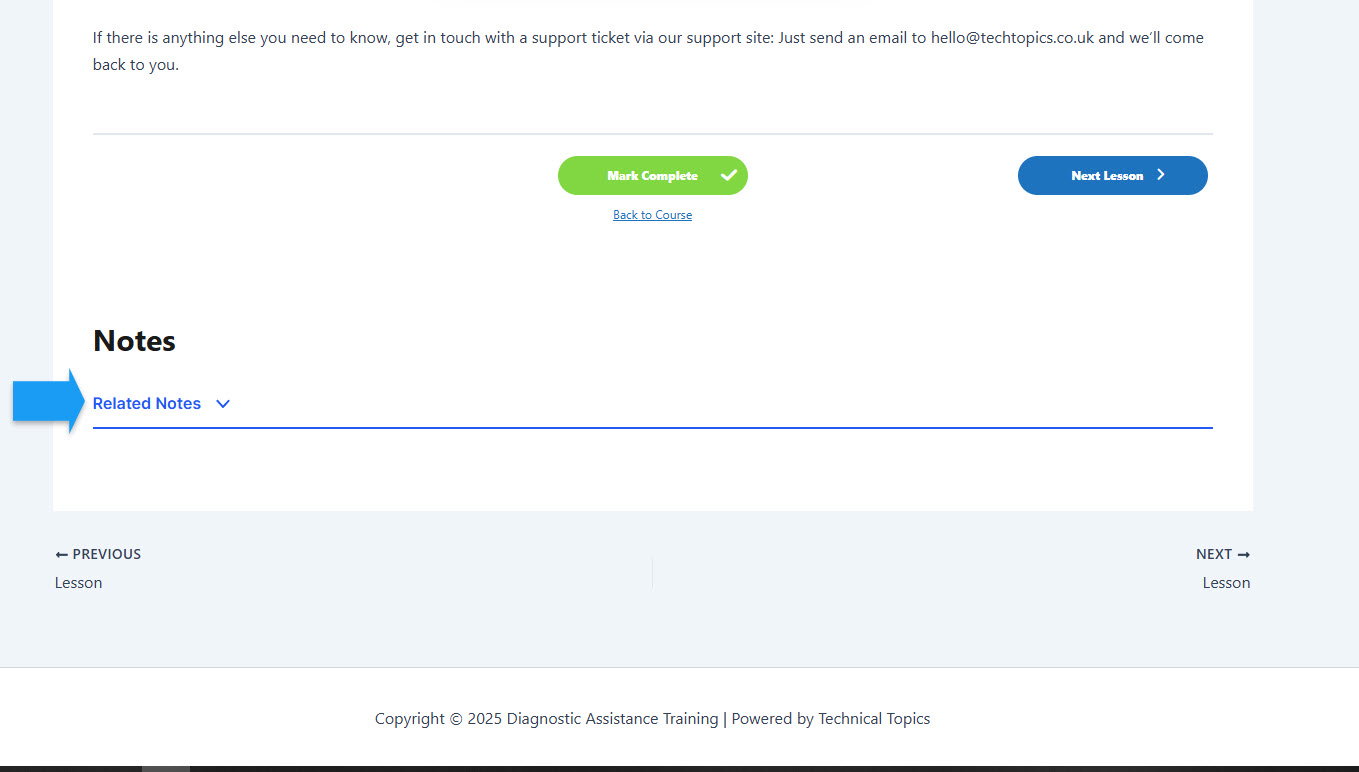
Use case 1) You are still in the lesson. Go to My Notes – Click the “Notes” link on bottom of the page where you made the note .
Click ‘Related Notes’
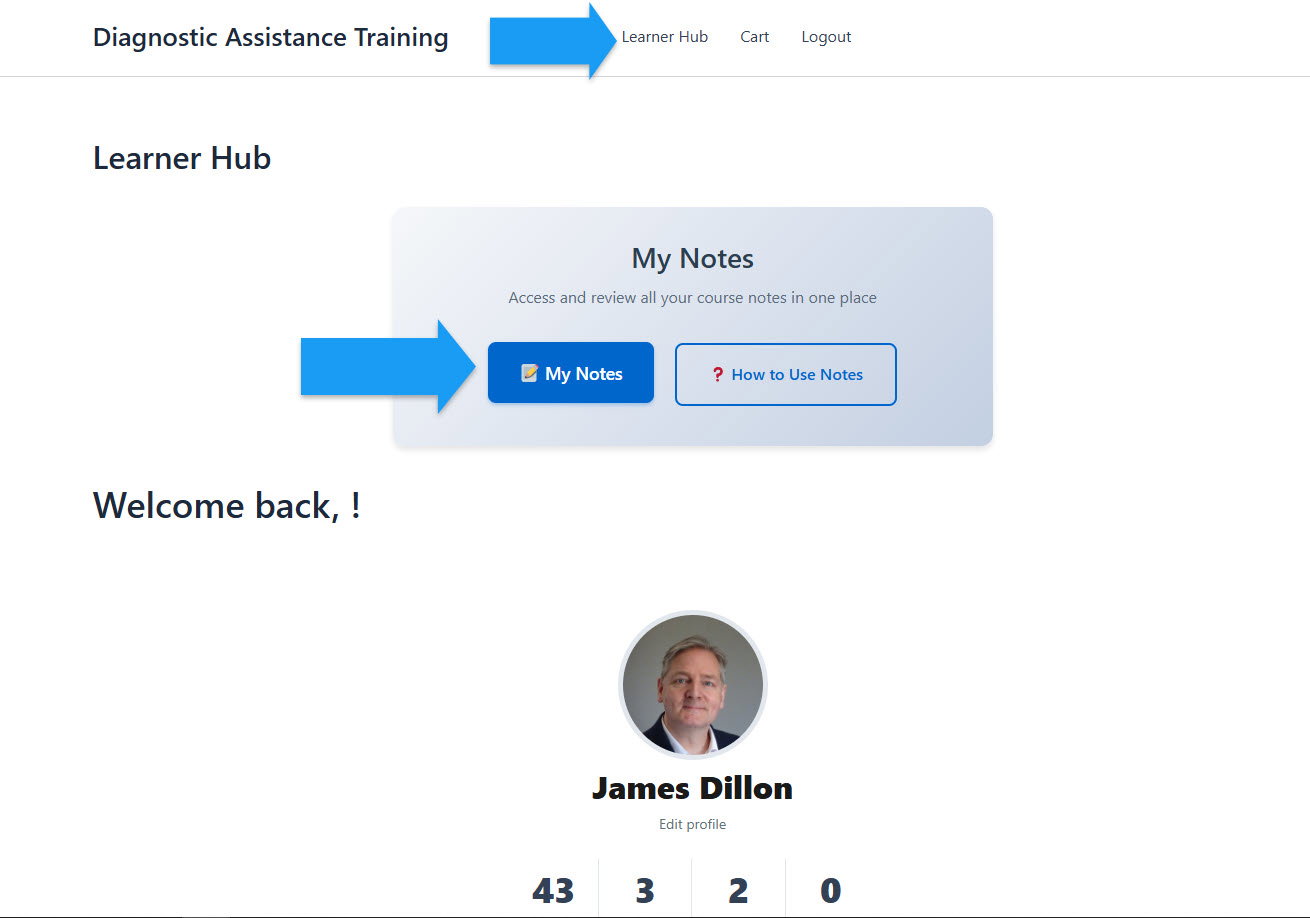
Use Case 2) After the lesson is complete? Go to the Learner Hub Page. You will see the My Notes Button. Click it.
Open up All My Notes Now you will be able to see all of the Notes you have made.
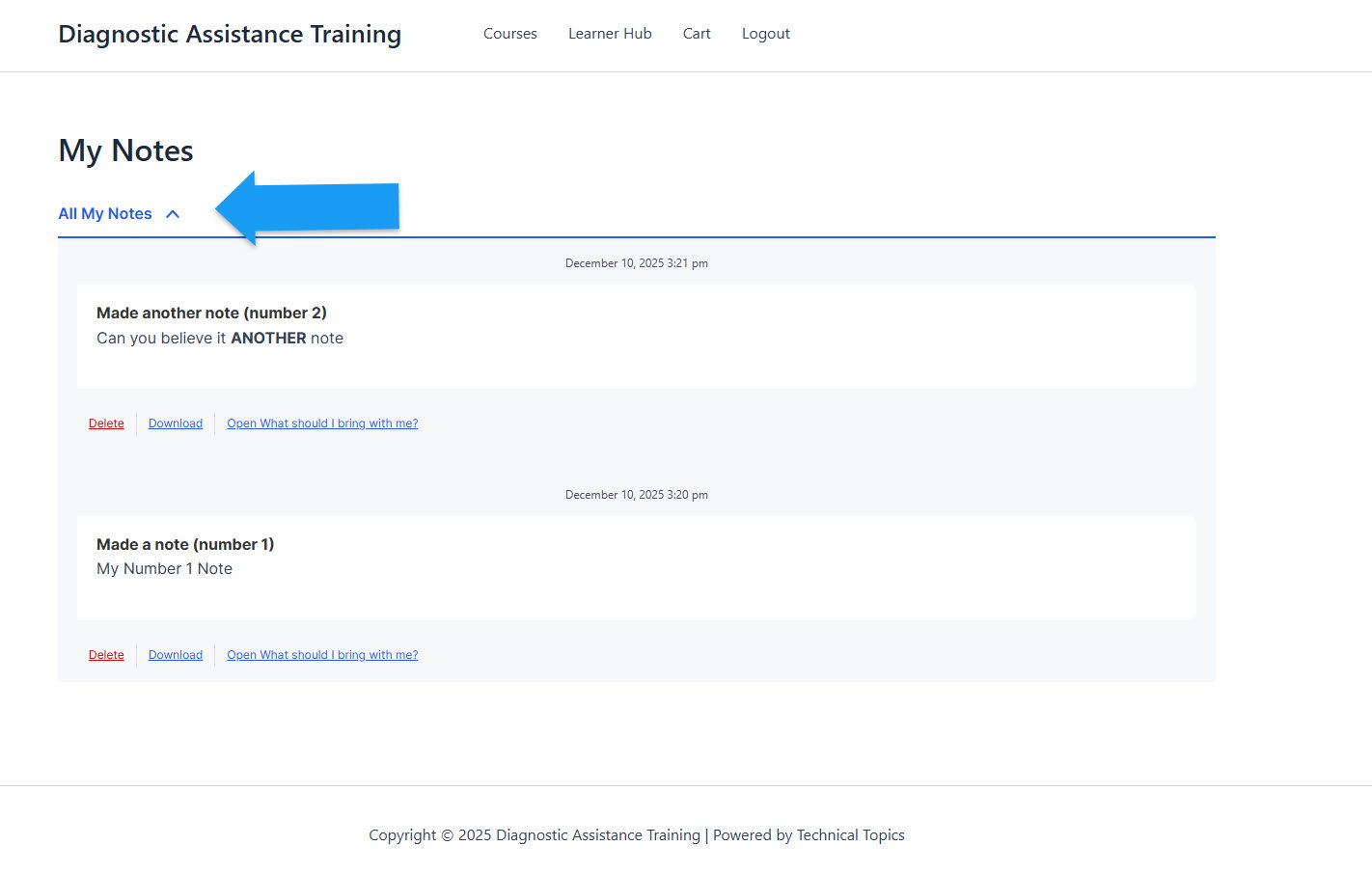
Using Notes You can download the note as a word document (indicated by the first arrow). Or you can return to the lesson or topic from which the note was originally made (the second arrow).
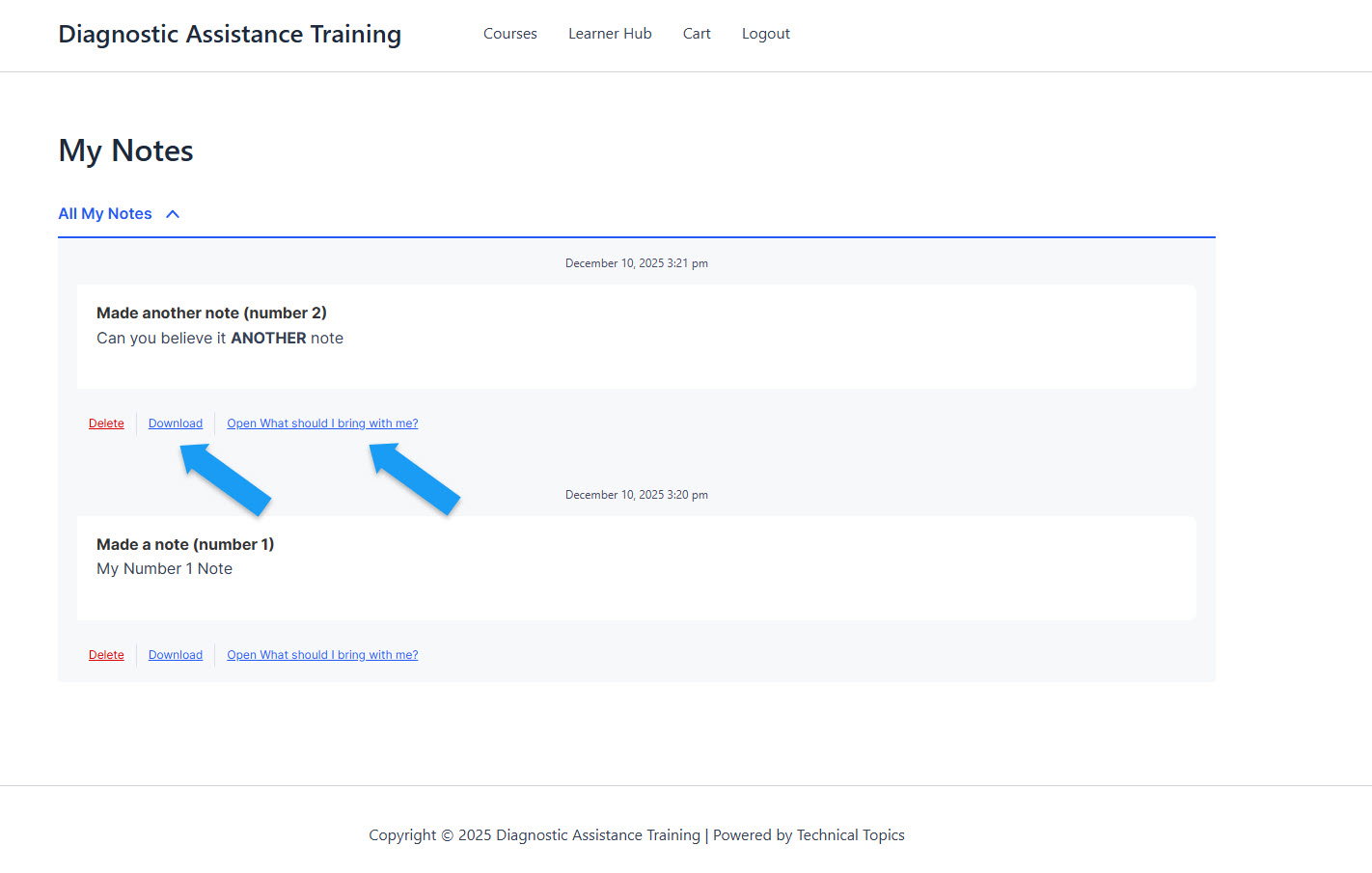
Using Your Notes
Download them – Export to Word for backup, storage and offline study.
Quick Tips
Take notes as you watch videos or read content
Jot down questions immediately – don’t lose them
Review notes before quizzes
IMPORTANT: The system allows you to make notes. But the notes feature can not be relied upon as a permanent store. You are responsible for backing up your own notes (via the download function) after you have made them. Technical Topics do not accept responsibility for the storage or presevation of your personal notes.